Connect your LINE Official Account so customers get booking notifications
About 20 to 30 minutes
Open LINE Official Account ManagerOnce it's set up, when a customer books through your LINE booking link, your Official Account sends them a booking confirmation, plus a reminder the day before. You'll use four places: LINE Official Account Manager (to manage your Official Account), LINE Developers Console (to get the token and create the LIFF app; it's only in English and Japanese), your GlowMoment dashboard, and LINE on your phone. Please do this on a computer.
Step 1
Get your Official Account ready and enable Messaging API
If you don't have an Official Account yet, create one in LINE Official Account Manager (
manager.line.biz) first. Open your account → "Settings" → "Messaging API" → "Enable Messaging API". You'll be asked to pick a Provider. If you don't have one, create one and just name it after your shop. You can't change the Provider once it's chosen, and step 3 has to use the same one.Step 2
Get the Channel Access Token
Go to LINE Developers Console (
developers.line.biz/console) → click the Provider from step 1 → click your Official Account's Messaging API channel → "Messaging API" tab → scroll to the bottom, press "Issue" under "Channel access token (long-lived)" → copy it. This token doesn't expire. If you issue a new one, the old one stops working right away and you'll need to paste the new one into GlowMoment.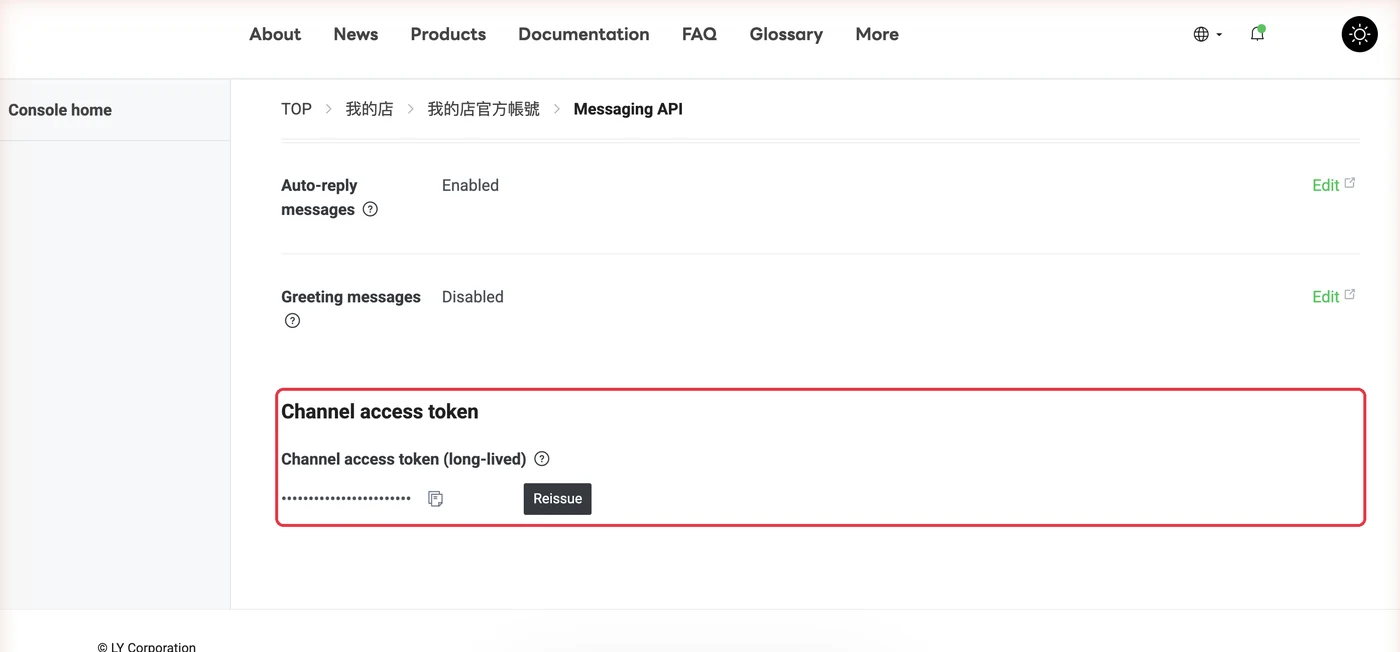
Step 3
Create a LINE Login channel
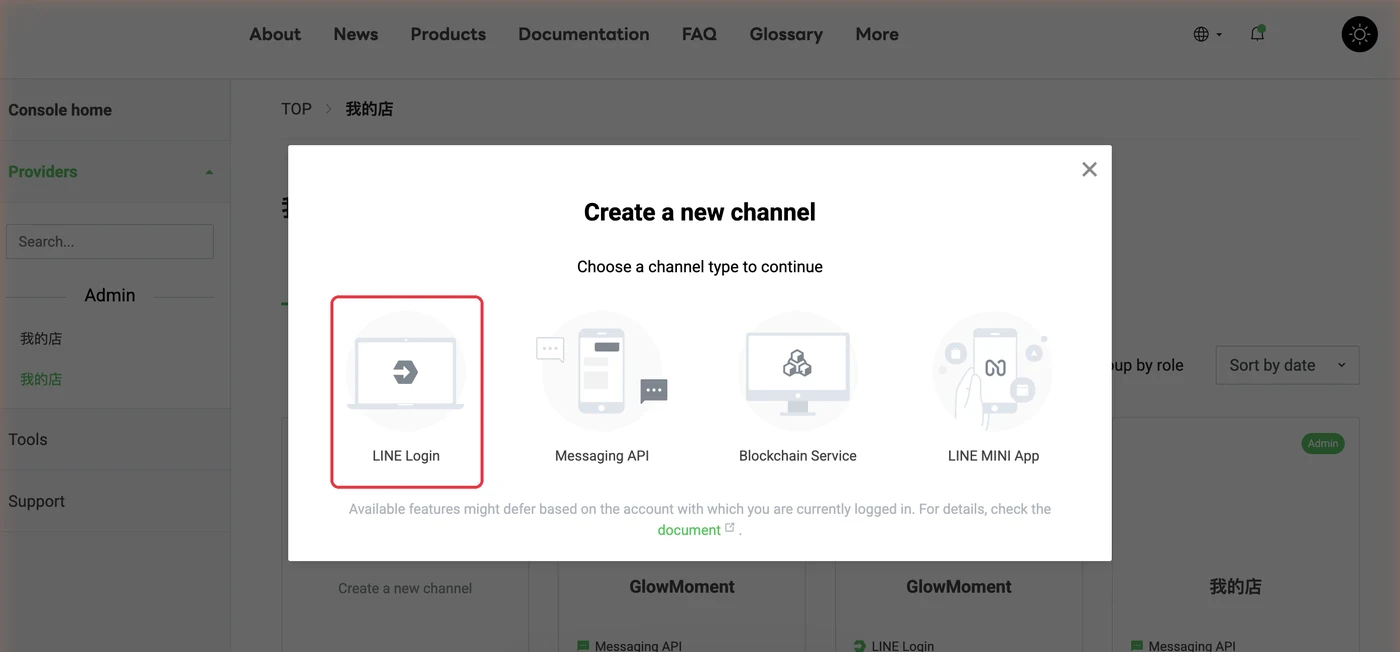
In the same Provider → "Create a new channel" → choose "LINE Login". Set "Region to provide the service" and "Company or owner's country or region" to Taiwan, check "Web app" under "App types", fill in "Channel name" (it can't contain the word LINE), "Channel description" and "Email address" → agree to the terms → "Create".
Step 4
Link your Official Account to the LINE Login channel
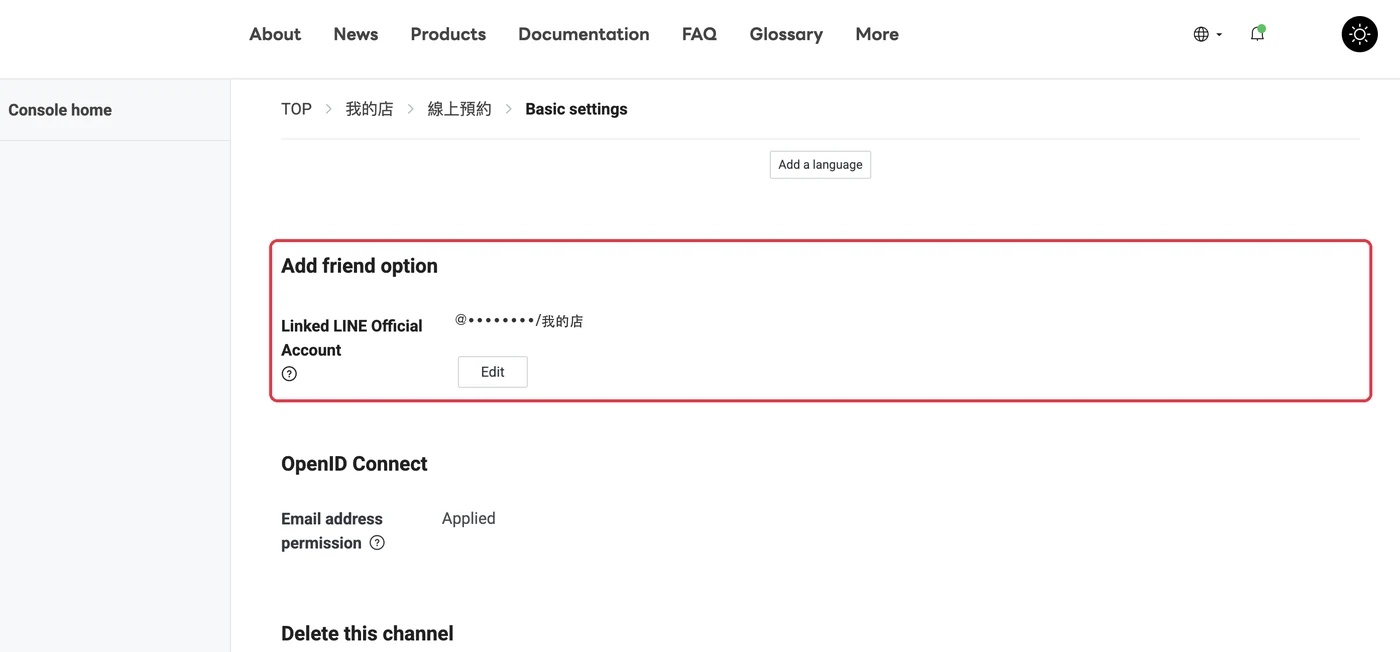
In the LINE Login channel you just created → "Basic settings" tab → press "Edit" next to "Linked LINE Official Account" → choose your Official Account → "Update".
Step 5
Create the LIFF app
LINE Login channel → "LIFF" tab → "Add", and fill it in like this: • "LIFF app name": any name, e.g. "Book Online" (it can't contain the word LINE) • "Size": Full • "Endpoint URL":
https://glowmoment.store/liff-entry(exactly this, not your booking page URL) • "Scopes": check profile • "Add friend option": On (aggressive), so customers are taken to add you as a friend the first time they open the link • "Scan QR" and "Module mode": leave off After you press "Add", copy the "LIFF ID" from the list. It looks like2001234567-abcdEFGH.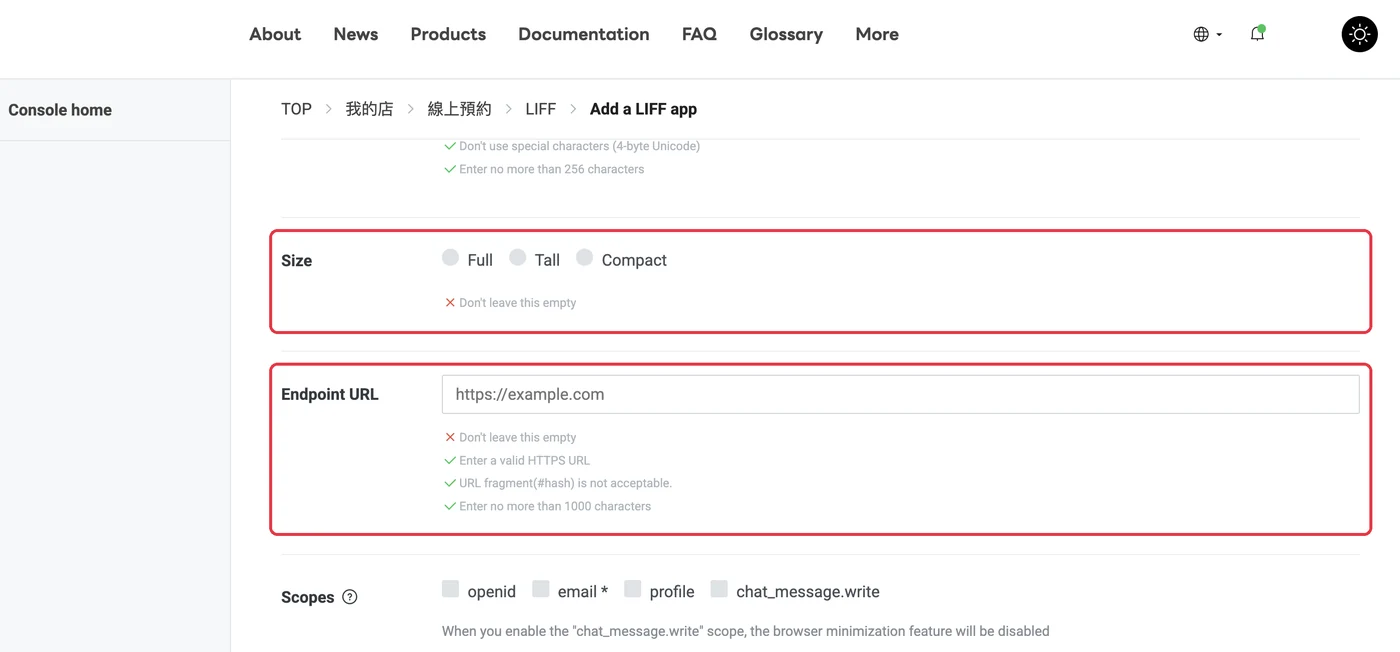
Step 6
Publish the LINE Login channel
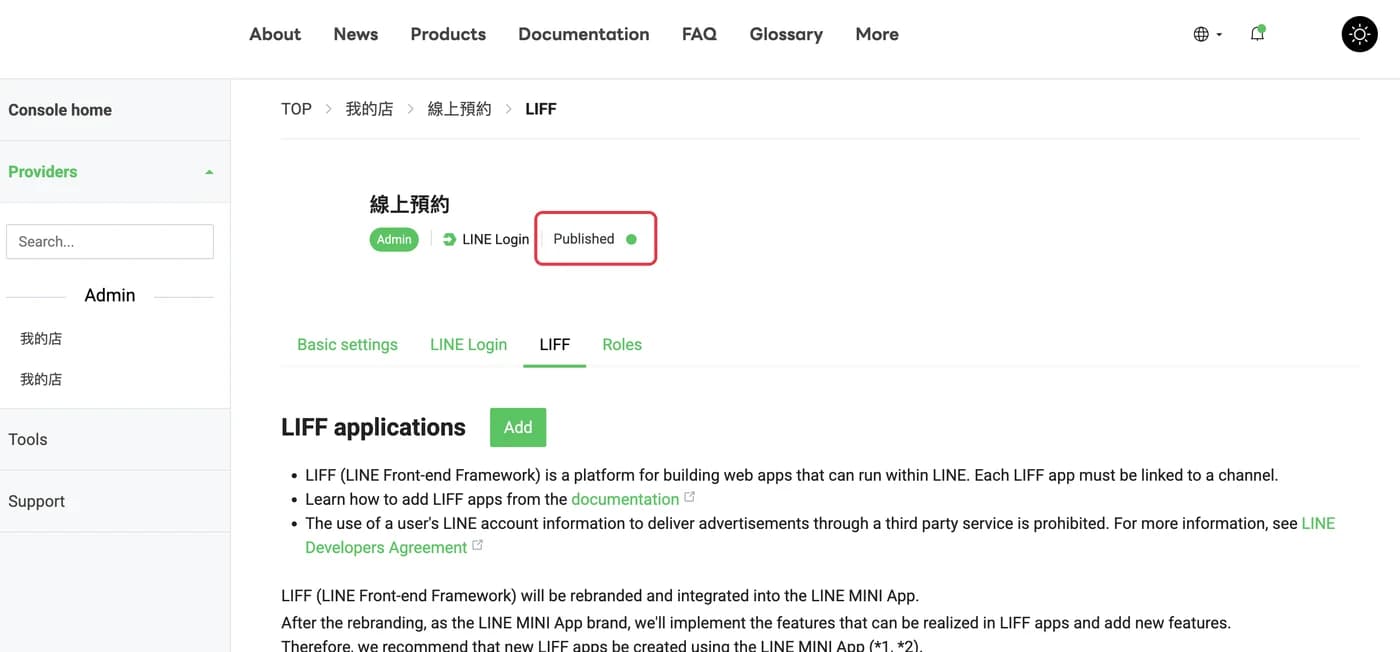
If the top of the channel page shows "Developing", only you can open it and customers will get an error. Click it and change it to "Published". Once changed, it can't be switched back.
Step 7
Enter it in GlowMoment
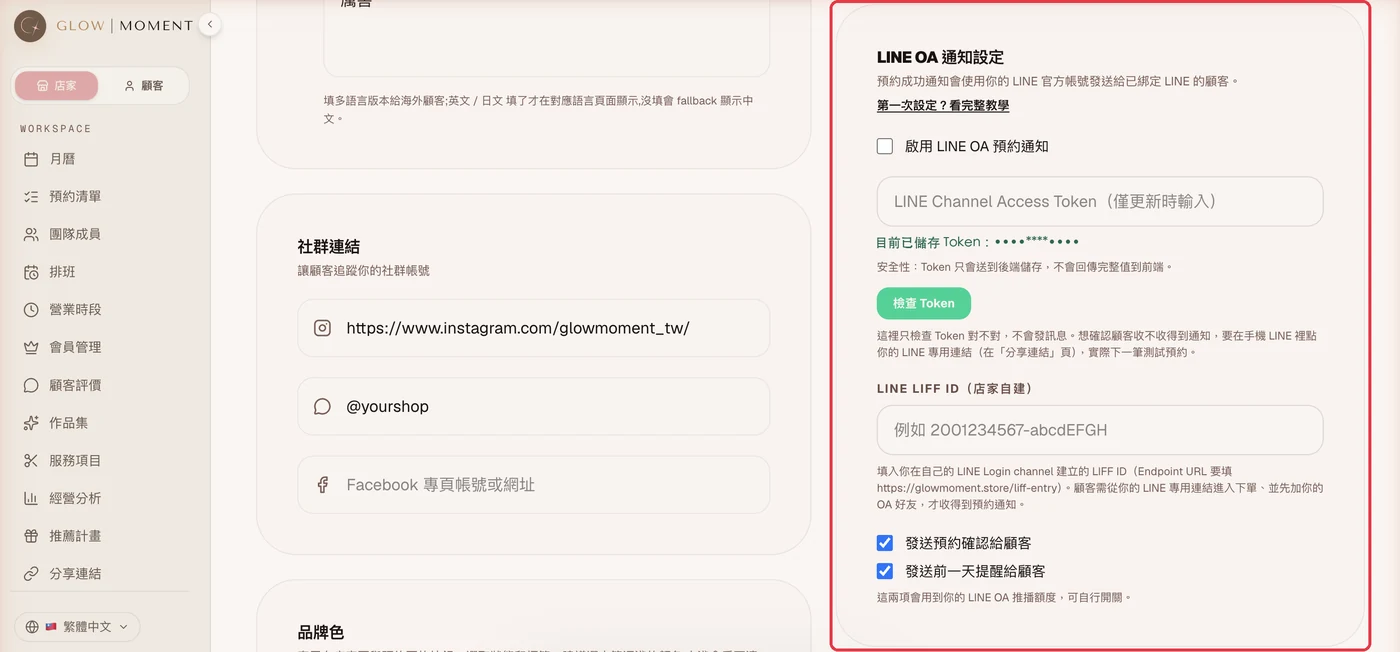
Click your profile picture at the top right → "Provider profile" → "LINE OA notifications": • Paste the token from step 2 into "LINE Channel Access Token (only enter when updating)" and press "Check token". If you see "Token is valid: your Official Account name", it's right • Check "Enable LINE OA booking notifications" • Paste the LIFF ID from step 5 into "LINE LIFF ID (your own)" • Decide whether to check "Send booking confirmation to customers" and "Send day-before reminder to customers" Finally, press "Save provider profile" at the very bottom of the page.
Step 8
Add it to your rich menu
In the dashboard's left menu, go to "Share link" → under "LINE-only link", press "Copy LINE link" → go back to LINE Official Account Manager and use this URL as the link for a rich menu button or an auto-reply message. This link only works when tapped inside the LINE app, so don't post it on IG.
Step 9
Test it once on your phone
In LINE on your phone, add your own Official Account as a friend → tap the booking button in the rich menu → you'll first see "Verifying your LINE identity and redirecting to the booking page…", then your booking page opens. Pick a service with no deposit and go to the step where you fill in contact details. If you see "已偵測 LINE 身分,預約成功將推播通知" (LINE identity detected, you'll get a notification once the booking goes through), it's connected. Within a few seconds of submitting, your Official Account should send a booking confirmation. If you get it, everything works. Remember to cancel this test booking in the calendar.
FAQ and things to know
- For customers to get notifications, two things must both be true: they booked through your LINE-only link, and they've added your Official Account as a friend. Adding you as a friend but booking from the regular web link won't get them notifications.
- The LINE Login channel and the Official Account must be under the same Provider. If they aren't, bookings still go through, but your Official Account can't send the messages, and the dashboard won't show an error.
- "Check token" only checks whether the token is right. It doesn't send a message. To check that customers actually get notifications, make a real booking as in step 9.
- If you change your booking page's "Custom URL", go back to "Share link", copy the LINE-only link again, and replace the old link in your rich menu. You don't need to change the LIFF Endpoint URL.
- When booking confirmations go out: bookings with no deposit get one as soon as they're submitted; bookings with a bank transfer deposit get one after you confirm it; bookings with an online card deposit get one after payment is done.
- Notifications to customers use your own Official Account's message quota.
- Want to get new booking alerts yourself too? Under "New booking alerts", press "Link LINE", then press "Add Glow official account".
Still stuck after following the steps? Email us: hello@glowmoment.store
Go to dashboard settings