Apply for PAYUNi so customers can pay deposits by card online
About 30 minutes to fill in, review takes a few days to two weeks
Sign up on PAYUNiOnce it's on, customers booking a service that needs a deposit pay by credit card straight into your own PAYUNi account. The booking is confirmed automatically once paid, so no more matching the last five digits of a bank transfer. The money doesn't pass through GlowMoment, we take no cut, and PAYUNi charges the card fee.
You'll go back and forth between two places: the PAYUNi website (www.payuni.com.tw) and your GlowMoment dashboard. It's easier on a computer.
Step 1
Get ready first
You need to be 18 or older and have a Taiwan national ID. PAYUNi doesn't accept minors or an Alien Resident Certificate (ARC). Foreign shop owners need a registered company or business in Taiwan to apply. For an individual account, have ready: photos of the front and back of your ID, a photo of a second ID (NHI card or driver's license), the bank account you want to get paid into, and a phone that can receive text messages. If you have a company or business, apply for a business account with your tax ID number.
Step 2
Finish your brand page first
PAYUNi looks at your website during review, and a page that's too empty gets rejected. Before you apply, make sure your brand page has a profile photo, shop name, phone number, address, and live services with prices, and that your "Booking notice" clearly explains your cancellation and deposit refund rules.
Step 3
Sign up for PAYUNi
Sign up at
www.payuni.com.tw, choose "個人會員" (Individual member) or "商業會員" (Business member), and verify your email.Step 4
Complete your member info and verify your phone
After logging in, go to "完成會員資料" (Complete member info) → "前往填寫詳細會員資訊" (Fill in detailed member info), upload your ID, and fill in everything. Then go to "前往帳號設定" (Go to account settings) → "進行手機 OTP 驗證" (Verify phone with OTP) and enter the code from the text message.
Step 5
Add a store
In the left menu, go to "會員" (Members) → "新增商店" (Add store). Choose services as the store type. For the website URL, enter your brand page
https://glowmoment.store/s/your-link(it's the booking link on the "Share link" page in your dashboard, with/b/changed to/s/). Then fill in your customer service phone number and email. For payment methods, turn on at least "信用卡 一次付清" (Credit card, single payment). Online deposits only use this for now.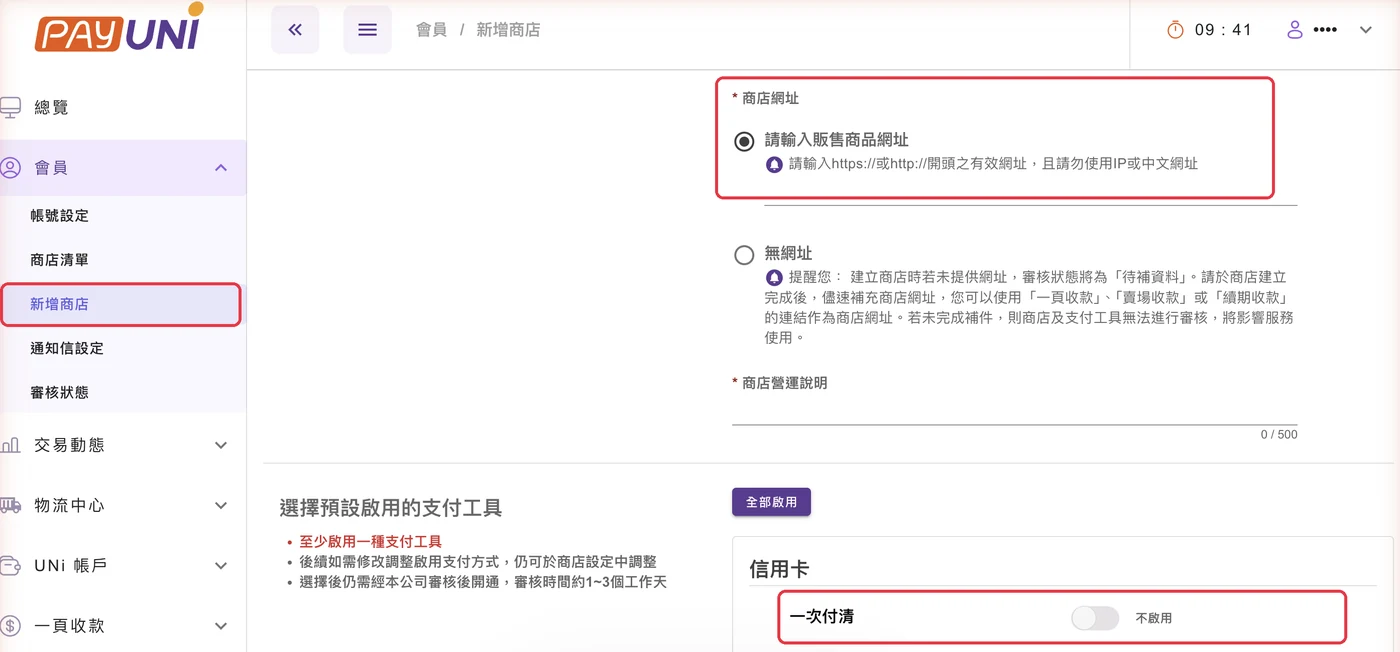
Step 6
Wait for review
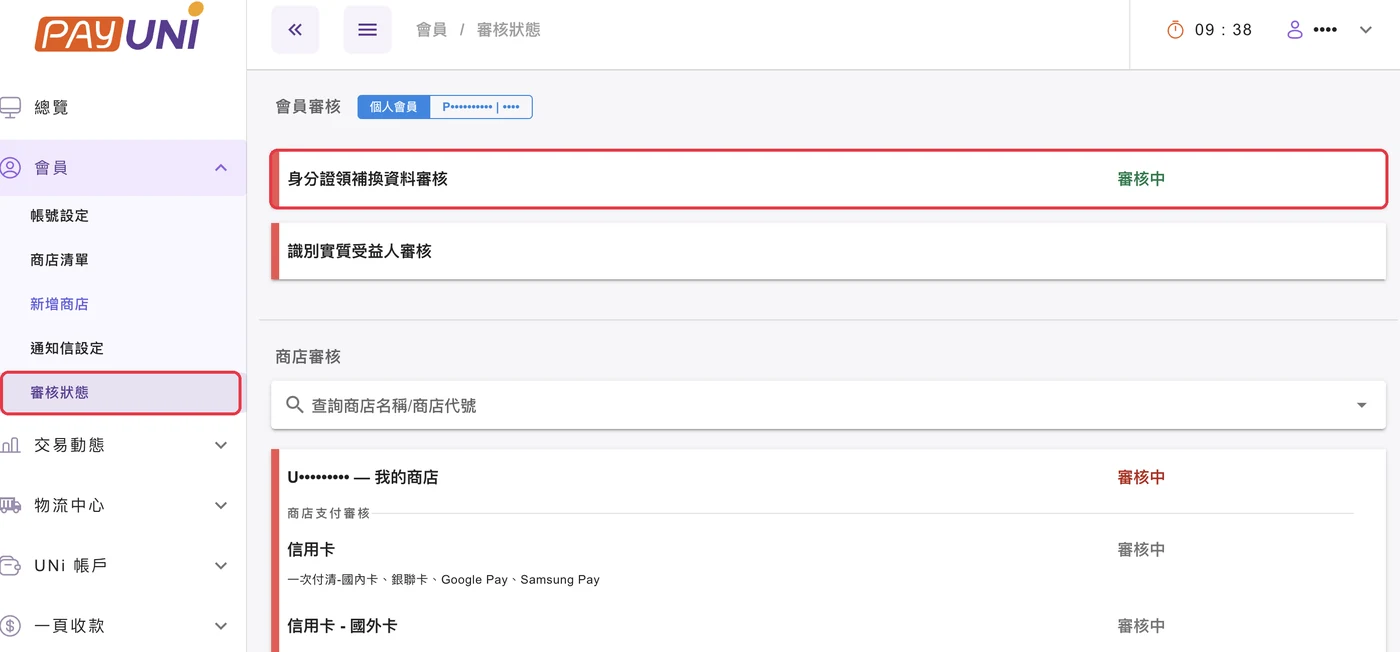
Check progress under "會員" (Members) → "審核狀態" (Review status). PAYUNi reviews your member info and ID first, then the store, and the payment methods last. If anything is missing, PAYUNi will email you. Fix what the email asks for and send it again. Note that "商店建立完成" (Store created) doesn't mean you're approved. You can only start taking payments after you get approval notices for both the store and the payment methods.
Step 7
Copy the three keys
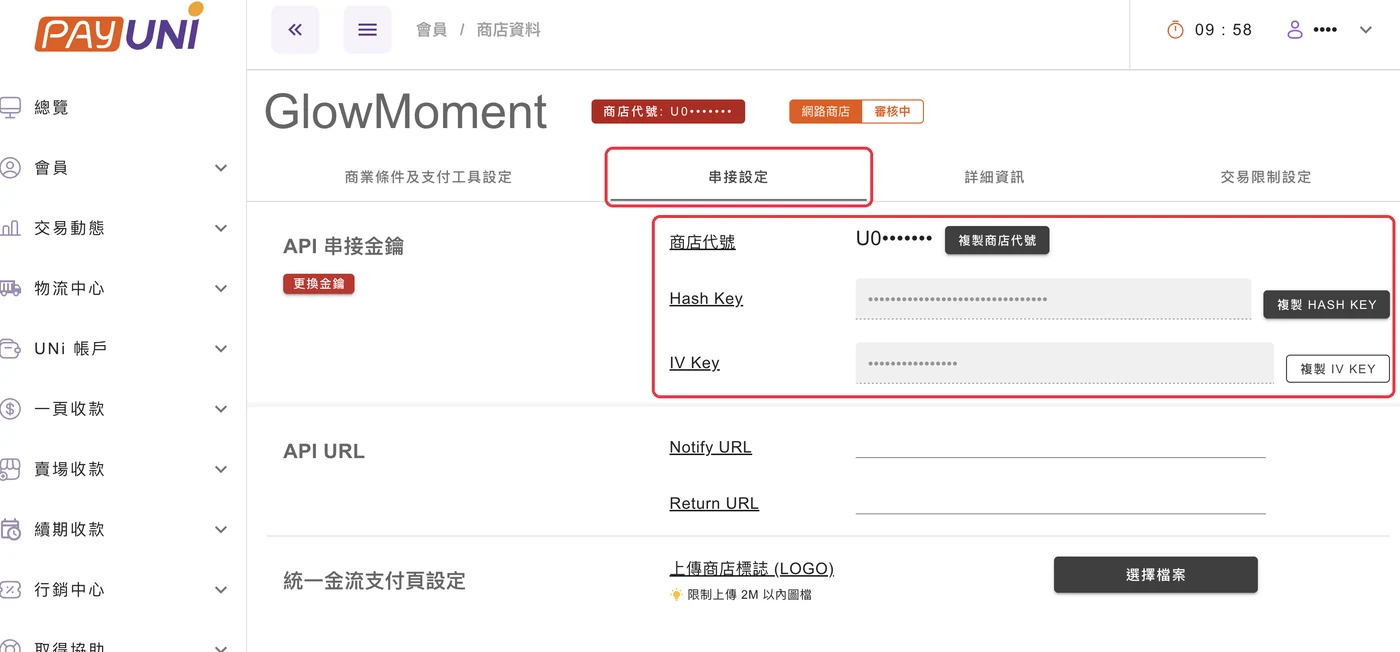
"會員" (Members) → "商店清單" (Store list) → pick your store → "串接設定" (Integration settings) tab, then copy the three values "商店代號" (Merchant ID), "Hash Key" and "IV Key". What PAYUNi calls "IV Key" is the "Hash IV" in GlowMoment. You don't need to fill in "Notify URL" or "Return URL" on the same page. Leave "限定 API 之 IP 設定" (API IP restriction) empty too. Our server addresses aren't fixed, so filling it in will get us blocked.
Step 8
Enter them in GlowMoment
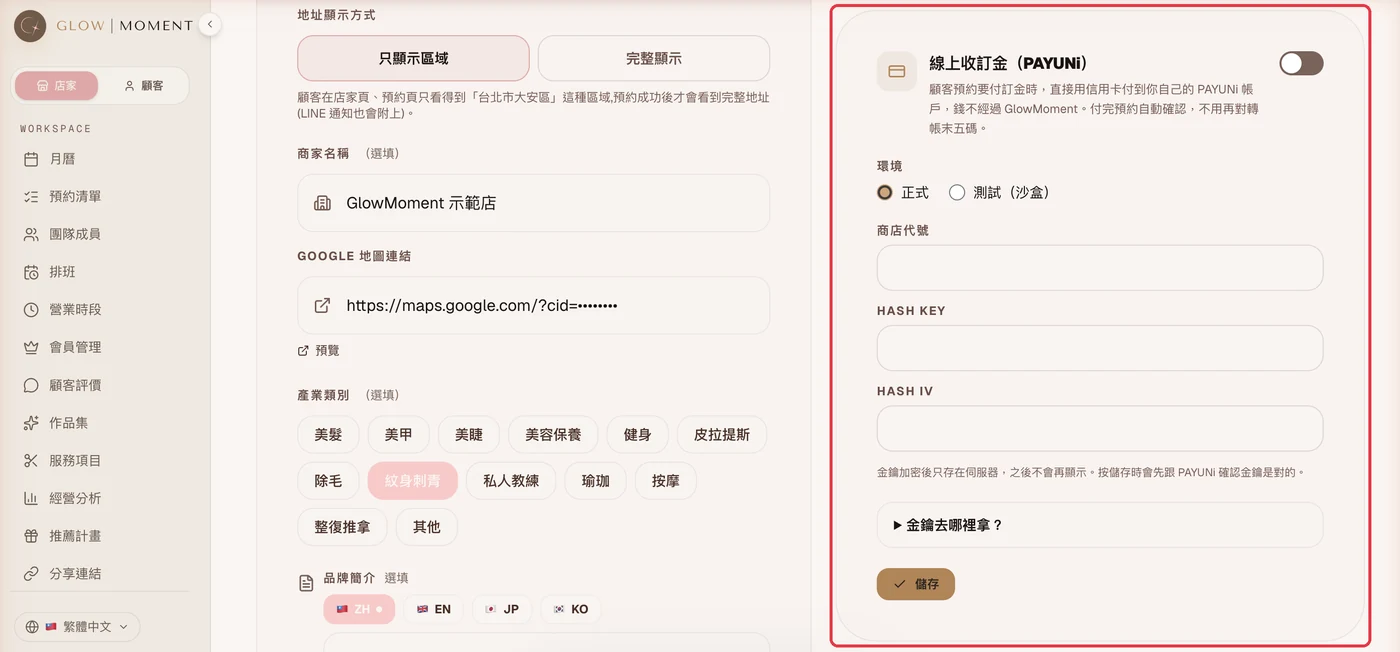
Click your profile picture at the top right → "Provider profile" → find the "Online deposits (PAYUNi)" card. Set the environment to "Live", paste the three values into "Merchant ID", "Hash Key" and "Hash IV", turn on the switch, and press "Save" in the card. Once you see the green "Set up: merchant …, verified on …", you're done.
Step 9
Set up withdrawals
Money customers pay goes into your PAYUNi account first. You need to withdraw it before it reaches your bank account. Set your withdrawal bank account and withdrawal day in the PAYUNi dashboard.
Step 10
Make a test payment yourself
In "Services", pick one and give it a deposit, then open your own booking page and make a booking. The button on the third step will change to "Pay deposit". Press it and you'll be taken to the PAYUNi payment page. Pay with a real card. When you're back on the booking page and see "Deposit paid. Your booking is confirmed.", it works. Last, go back to the calendar, click that booking, press "Refund deposit" to send the money back, then cancel the booking.
FAQ and things to know
- Pressing save shows "PAYUNi rejected these keys": check that the environment is right (a live store needs "Live") and that all three values come from the same store.
- You see "The Hash Key must be 32 characters and the Hash IV 16": usually an extra space got copied along. Copy them again.
- PAYUNi shows "商店代號已存在" (Merchant ID already exists): your details already went through, so you don't need to apply again. Check "會員" (Members) → "審核狀態" (Review status) to see if you need to send anything else.
- After a customer submits a booking, the time slot is held for 20 minutes. If they don't finish paying or the payment fails, it's released and others can book it.
- To refund a deposit, click the booking in the GlowMoment calendar and press "Refund deposit". It has to be within 180 days after PAYUNi finishes collecting the payment. After that, you'll need to handle it in the PAYUNi dashboard.
- Online deposits only support credit card single payment for now. ATM transfer, convenience store payment codes and LINE Pay aren't available yet.
- For questions about your PAYUNi account, review, withdrawals or fees, contact PAYUNi support directly: 02-6605-0810, service@payuni.com.tw. GlowMoment can't see your review progress.
Still stuck after following the steps? Email us: hello@glowmoment.store
Go to dashboard settings